[AK] Akeruka Beta Head user-manual
- Malaiyka

- Dec 9, 2019
- 2 min read
Updated: Dec 12, 2019
A few tips on setting up your [AK] Beta Head ♥
You can find some great info on the OFFICIAL AKERUKA WEBSITE
And also Tutorial videos on the SLACKGIRL YOUTUBE CHANNEL
For a tutorial video on DELUXE Heads please visit HERE

1. First, unpack your Beta Head by wearing and touch the pack in your hand. Check your 'Recent' folder to find it there and make sure to drag the folder to a place you'll easily find it again.
2. Ensure your previous head contents have been removed; and add the following:
BOM Head # 01 - It is important to wear this shape as it is designed for the head. It is MOD so you can customise the body shape later.
BOM 01 Brows
[AK BOM] Bento Head #01 BETA (0.91) <== Version # will change with updates
[AK BOM] Teeth
[AK BOM] Alpha System Eyes - (PS - Not needed if using BoM for eyes)
[AK BOM] Eyes #01 - Mesh eyes
Note: The above is to get your initial [AK] Beta Head set up for Bakes on Mesh. For appliers, use the [AK BOM] Alpha Head & Eyes instead; and touch a skin tone on the palette in the Basic Tab of the HUD.
Note: If you wish to use BoM on eyes , then just leave out the 'Alpha System Eyes' and click the 'Bakes on Mesh' button on the 'EYE' tab on the Main HUD - more on this later.

As you will see the pack also includes packs of System (BoM) skins, Gestures, Body Appliers and System (BoM) Eyes.
It also includes Braces & Tongue Piercing; as well as HUD's for Teeth, Animations & Neck fixes.
So! Your [AK] Beta Head is set up!
Now open the main HUD - we'll go through the various 'TABS'
Note: The 'BLEND' slider on each tab is to adjust the OPACITY of each layer

1. BASIC TAB

2. COSMETICS TAB

3. HD LAYERS TAB

4. EXTRA TAB

5. EYES TAB
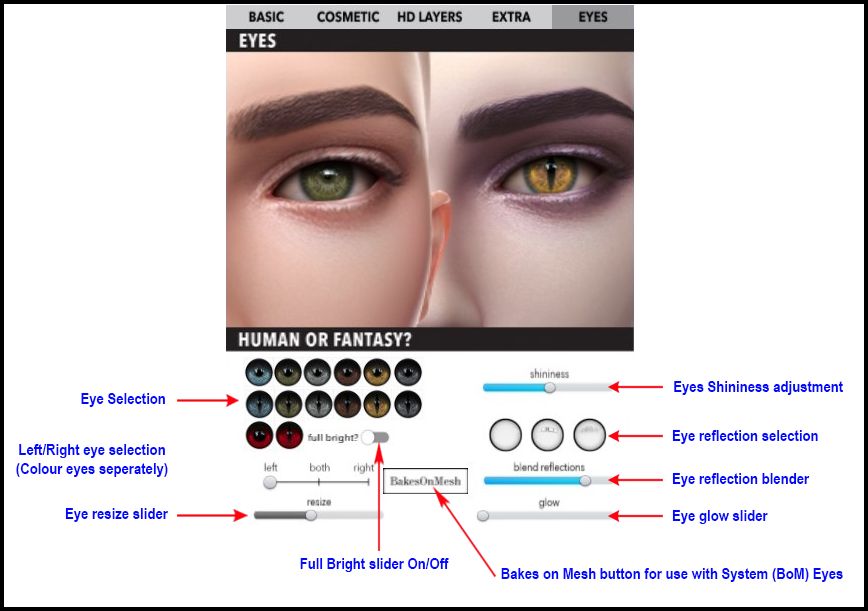
For BoM eyes, simply remove the Eye Alpha and click the 'BakesOnMesh' button
Note: Your eyes come default as Full Bright (yet slider shows off and grey). To reset, just slide the Full Bright slider back and forth once to turn it off.
6. TINT TAB
Tinting is easy! Just follow the steps below to tint your skin, blush, eyeshadow, lipstick, HD lipstick, lashes, brows, tattoos & hairbase
Click the TINT LAYERS button on the side of the BASIC tab
Choose what part you would like to tint
Choose a colour, either from the palette or enter RGB details
Press APPLY, and done!

7. PRESETS
The easiest of them all. Simply click the PRESETS button, and hold down on one of the heads for a few seconds and viola! You can save 6 head presets.

亚博体育 亚博体育 亚博体育 亚博体育 开云体育 开云体育 开云体育 开云体育 乐鱼体育 爱游戏体育 华体会体育 华体会体育 欧洲杯下注 欧洲杯下注 欧洲杯下注 欧冠下注 欧洲杯外围 欧洲杯外围 开云体育 开云体育 开云体育 亚博体育 欧洲杯下注 欧洲杯投注 亚博体育 亚博体育 亚博体育 开云体育 英雄联盟下注 LPL下注 LOL下注